Modify eForms
Users can modify eForms by performing the following steps:
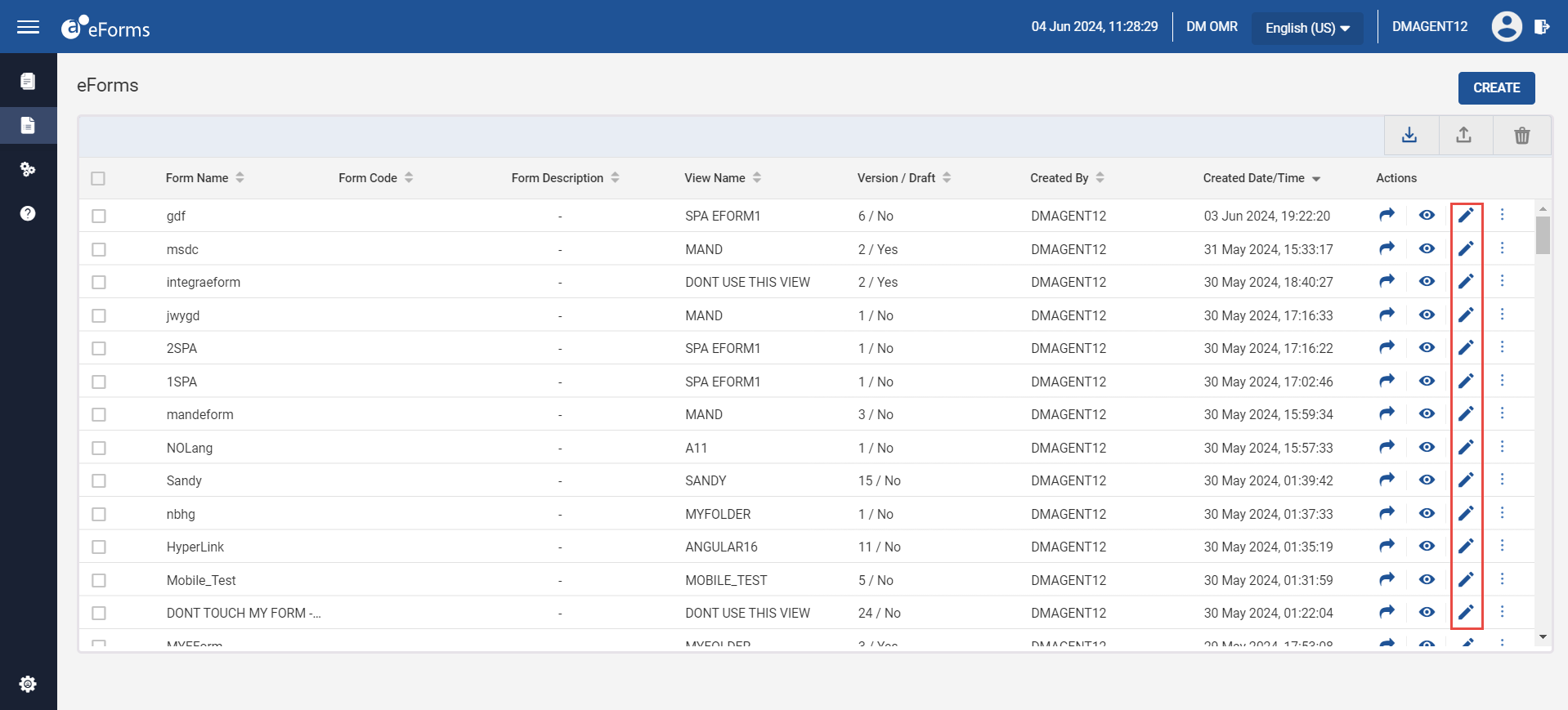
Click eForms from the navigation menu. The eForms page appears.
Click the Edit icon corresponding to the preferred eForm.
The selected form is displayed for modification.
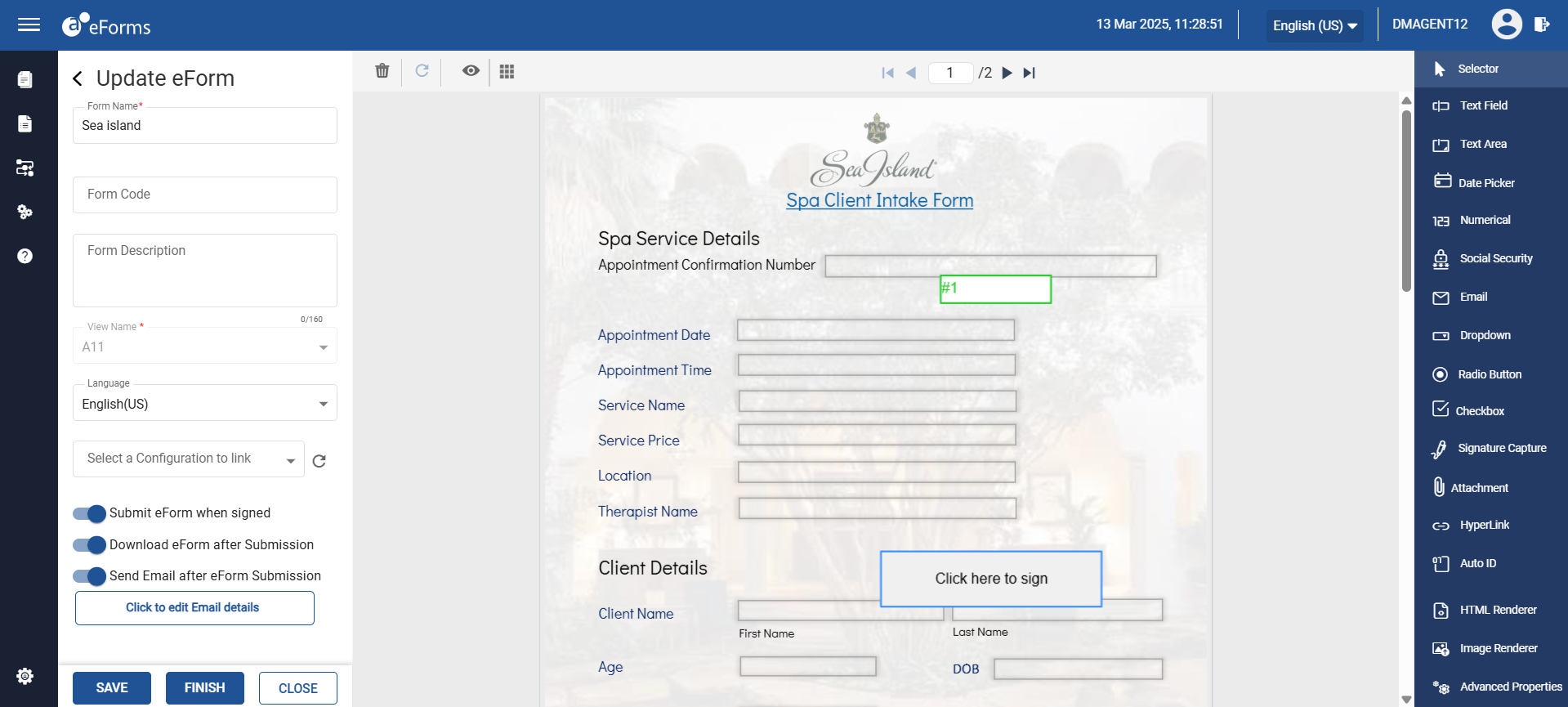
Sample PDF eForm when opened for modification
Sample responsive eForm when opened for modification
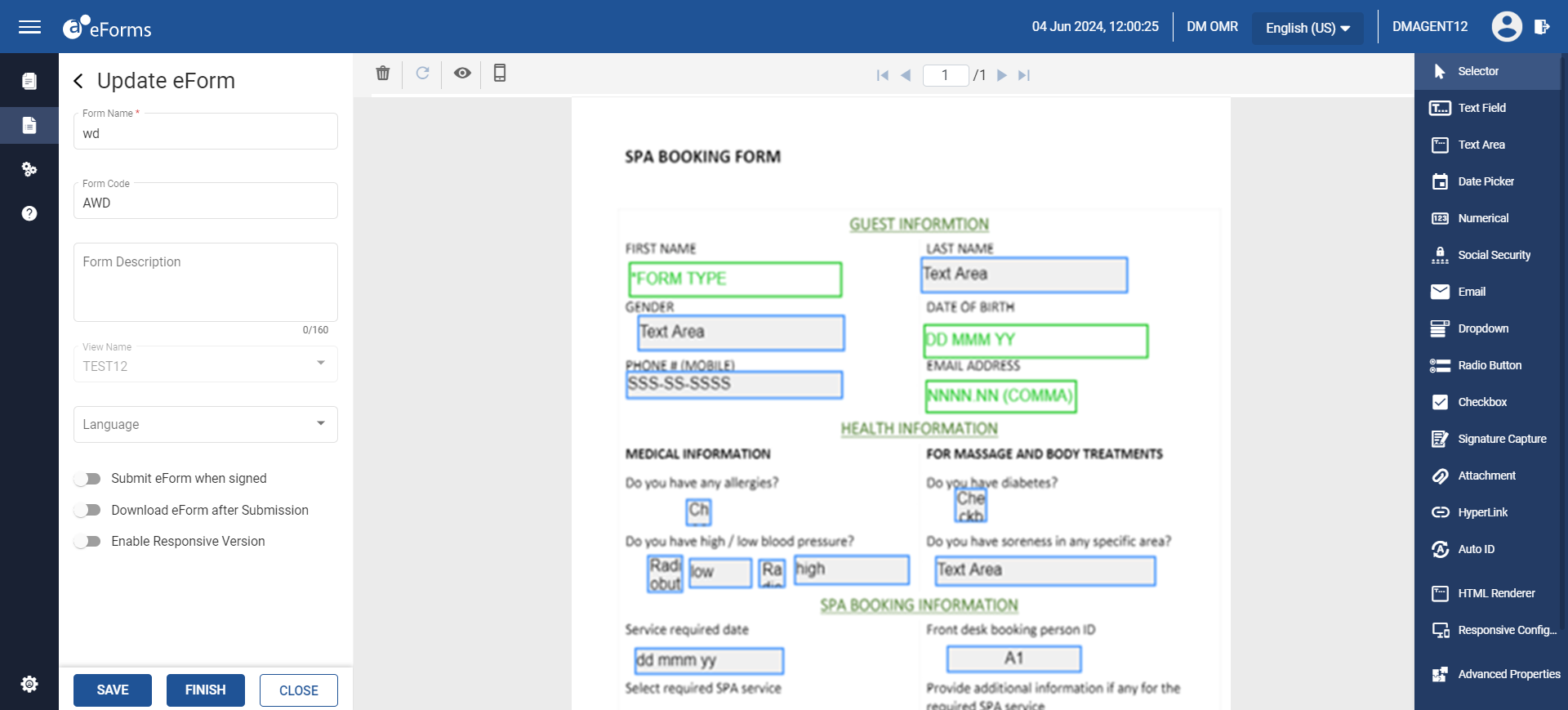
Modify the eForm using the design field options available on the right pane.
Click Save to save the eForm as draft.
OR
Click Finish to finalize the eForm and store a version of the same in Version History.
OR
Click Close to close the eForm.
When properties of a preferred view/index are modified under Admin ➜ Administration ➜ Views, the changes are automatically updated in the eForm associated with the view/index by updating the properties in the eForm Designer.