Export/Import eForms
Users can export/import eForms to use its design and field properties to create eForms with similar properties.
Export eForms
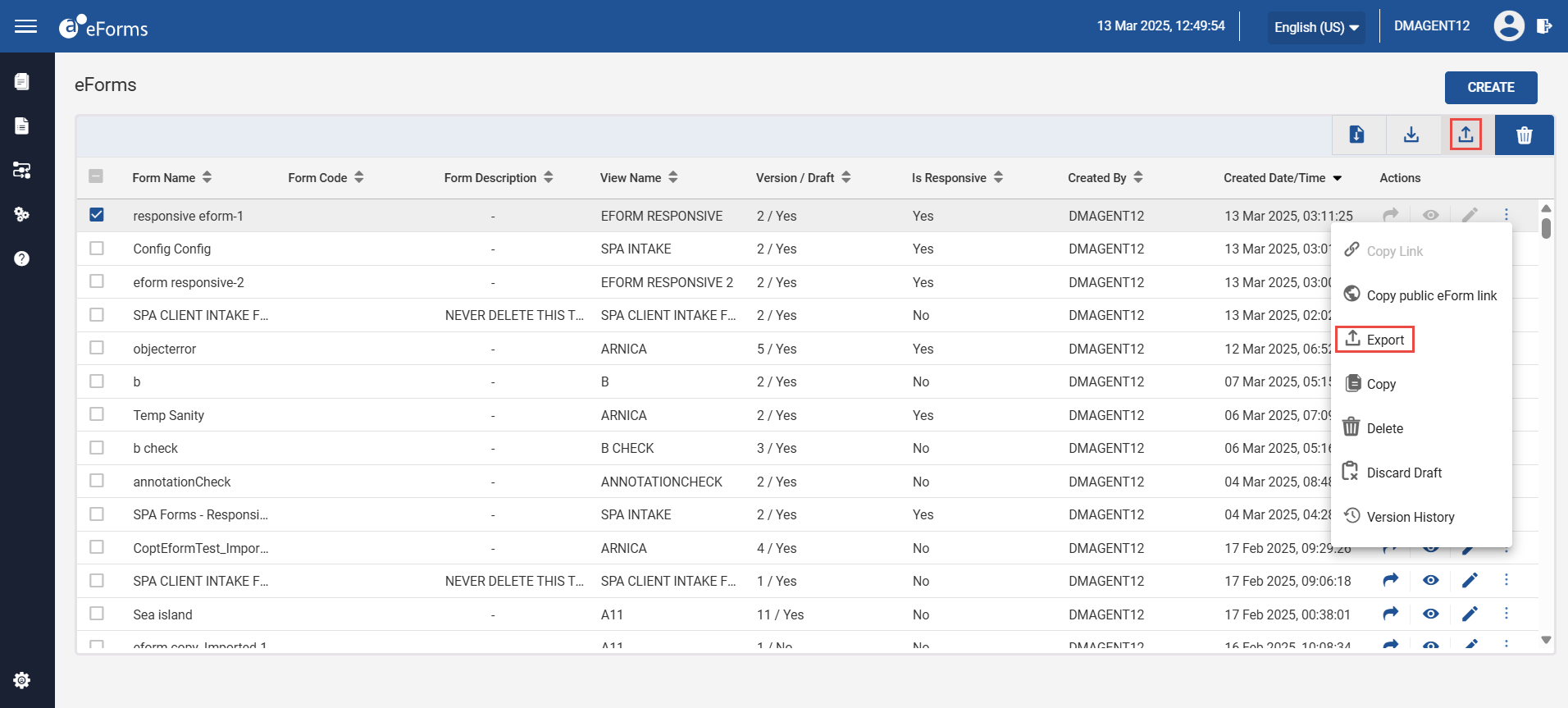
Click the ellipses corresponding to the preferred eForm.
Click Export. The eForm is downloaded and appears in the designated download location in JSON file format.
Sample Screen
Exporting eForms in Bulk
Select the checkboxes corresponding to the preferred eForm that must be exported.
Click the Export icon located at the top-right corner.
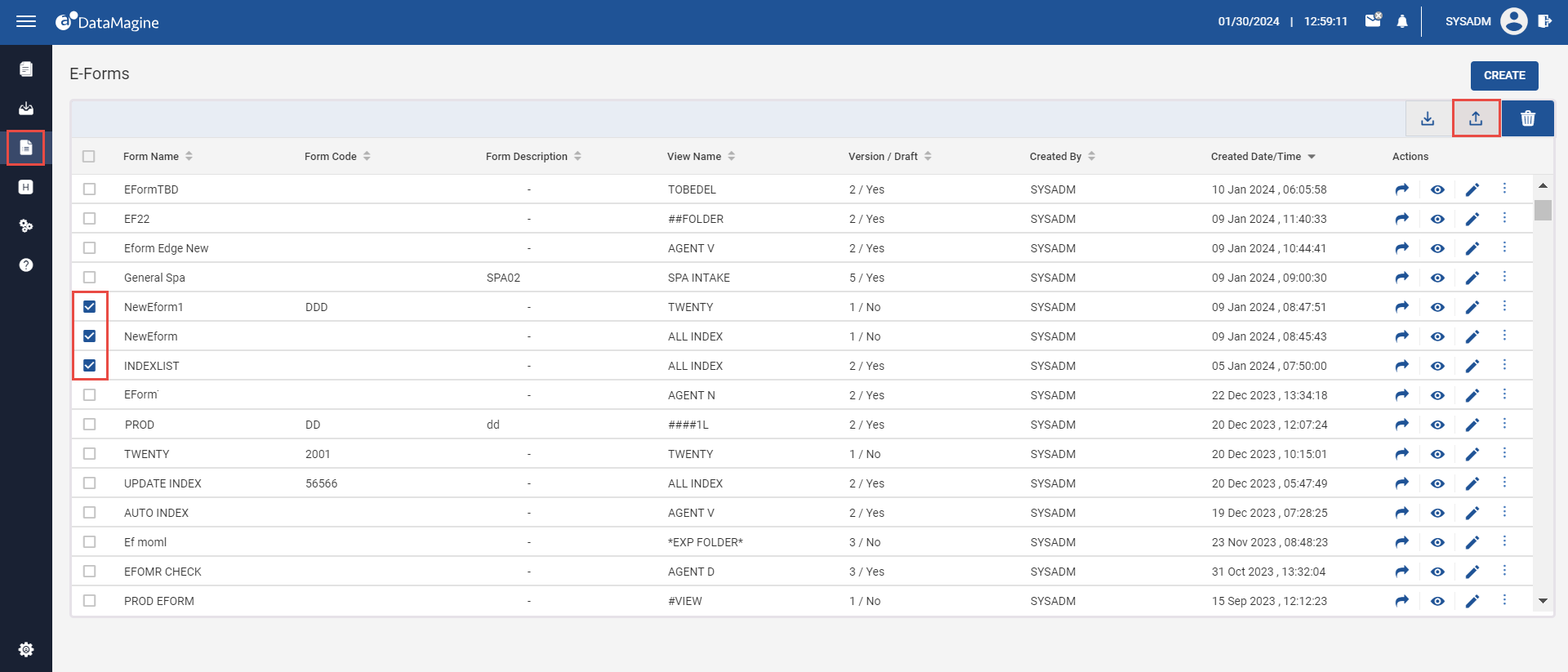
eForms are downloaded and appear in the designated download location as a compressed (zipped) folder.
Import eForms
Click the Import icon located at the top-right corner.
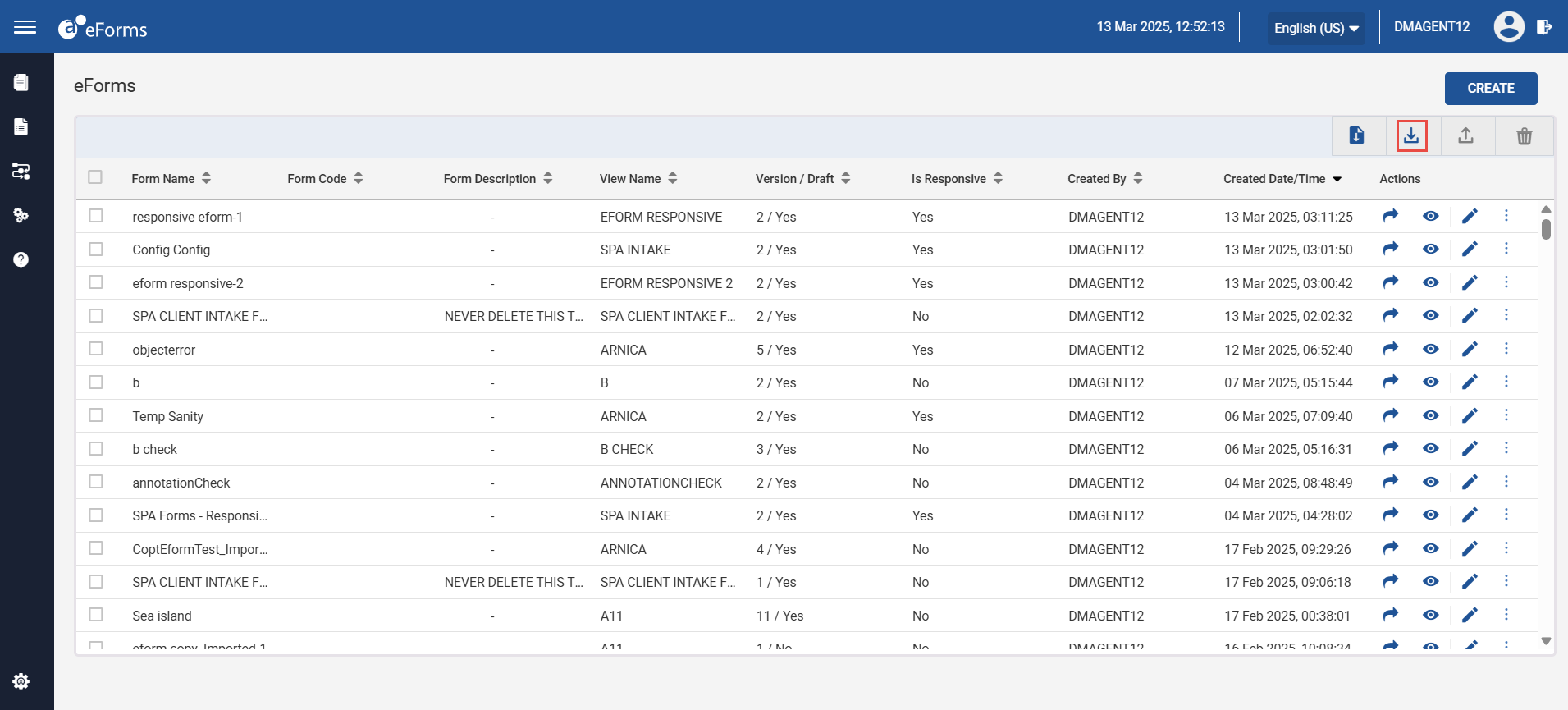
Select the preferred eForm using the File Explorer.
Click Open. The eForm is imported successfully with the form name suffixed with _imported and appears under the list of eForms. The name of the eForm can be renamed as preferred after the import.
In case of an unsuccessful attempt to import an eForm, check the views, folders, and indexes associated with the eForm properties.
Only one form can be imported at a time.