Access Workflows
Users can configure the recipient’s details and map their signature by performing the following steps:
Click Workflows from the left navigation menu. The Workflows page appears.
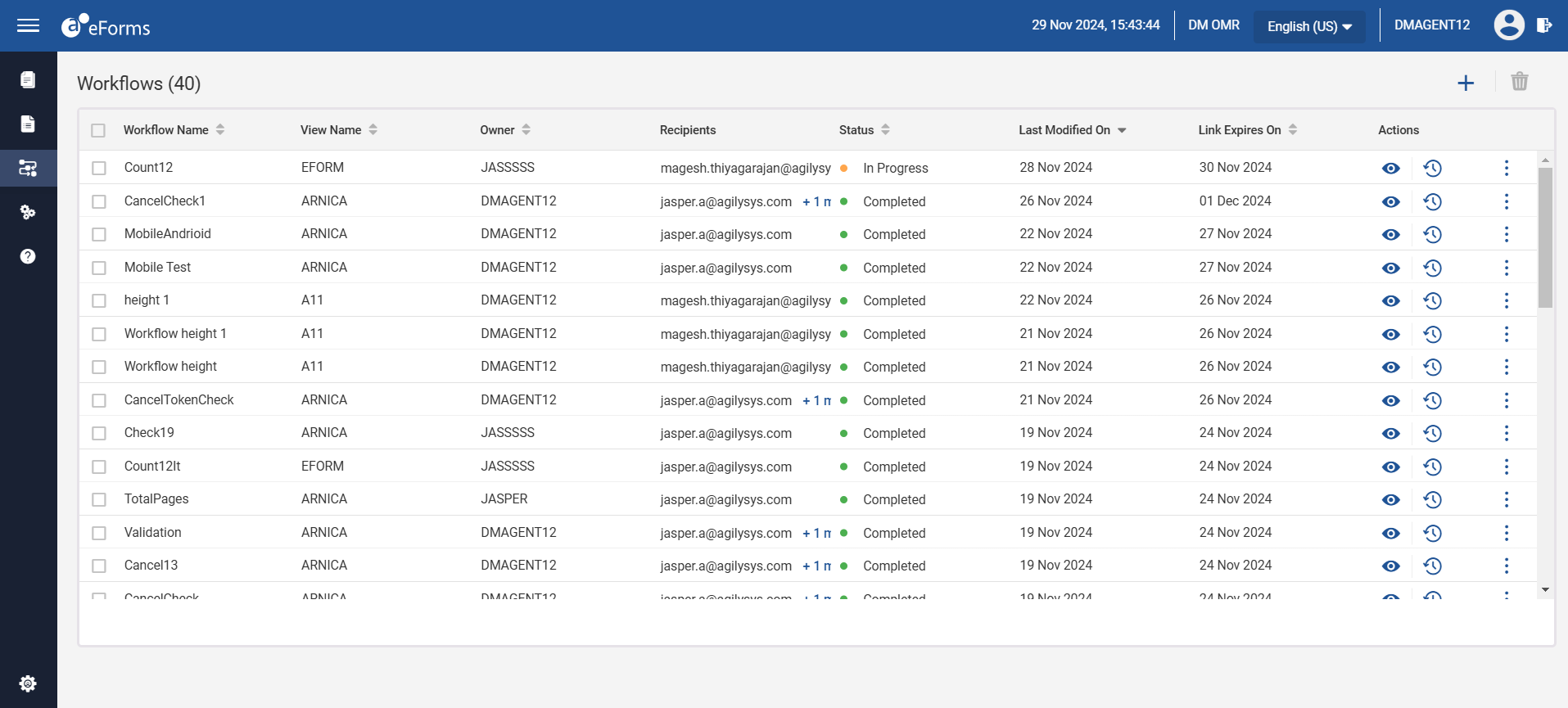
The Workflows section contains the following details:
|
Field |
Description |
|---|---|
|
Workflow Name |
Name of the workflow. |
|
View Name |
The mapped view name. the view where the document is saved in a folder. |
|
Owner |
User who created the workflow. |
|
Recipients |
The email address of the recipient user receiving the workflow. |
|
Status |
The present status of the workflow. The following are the statuses:
|
|
Last Modified On |
The date when the workflow was last modified. |
|
Last Expired On |
The expiry date of the workflow. |
|
Actions |
This column provides options to manage the workflow:
Click the ellipsis (…) to access additional options:
|
Click the ellipsis (…) to access additional options:
-
Cancel - Cancel the workflow. This option appears only when the status of the workflow is displayed as In Progress.
-
Restart - Restart a cancelled workflow (available only when the workflow status is Cancelled).
-
Send Reminder - Send reminder emails for pending workflows without cancelling them.
-
Delete - Delete a workflow (available only for cancelled workflows).